SMS Reminder Guide
Your complete resource for setting up and managing clinic appointment reminders.
Request a DemoKey Information
- Cost: $0.05 per text (no setup fee, no monthly fee)
- Setup Time: 1-21 business days for organization approval
- Requirements:
- Client's mobile phone number must have SMS reminders consented
- SMS feature enabled in Subscription
- Campaign approval from carrier. This is completed during setup steps through Ambiki.
Overview
SMS appointment reminders help reduce no-shows and improve patient communication by automatically sending text message reminders to patients before their scheduled appointments. Patients can confirm or cancel appointments directly from the text message, and all communication is logged in their profile.
- Getting Started
- Setting Up Your Organization
- Reminder Settings
- How Reminders Are Sent
- Patient Experience
- Managing Responses
- Frequently Asked Questions
- Best Practices
Getting Started
Adding SMS to Your Subscription
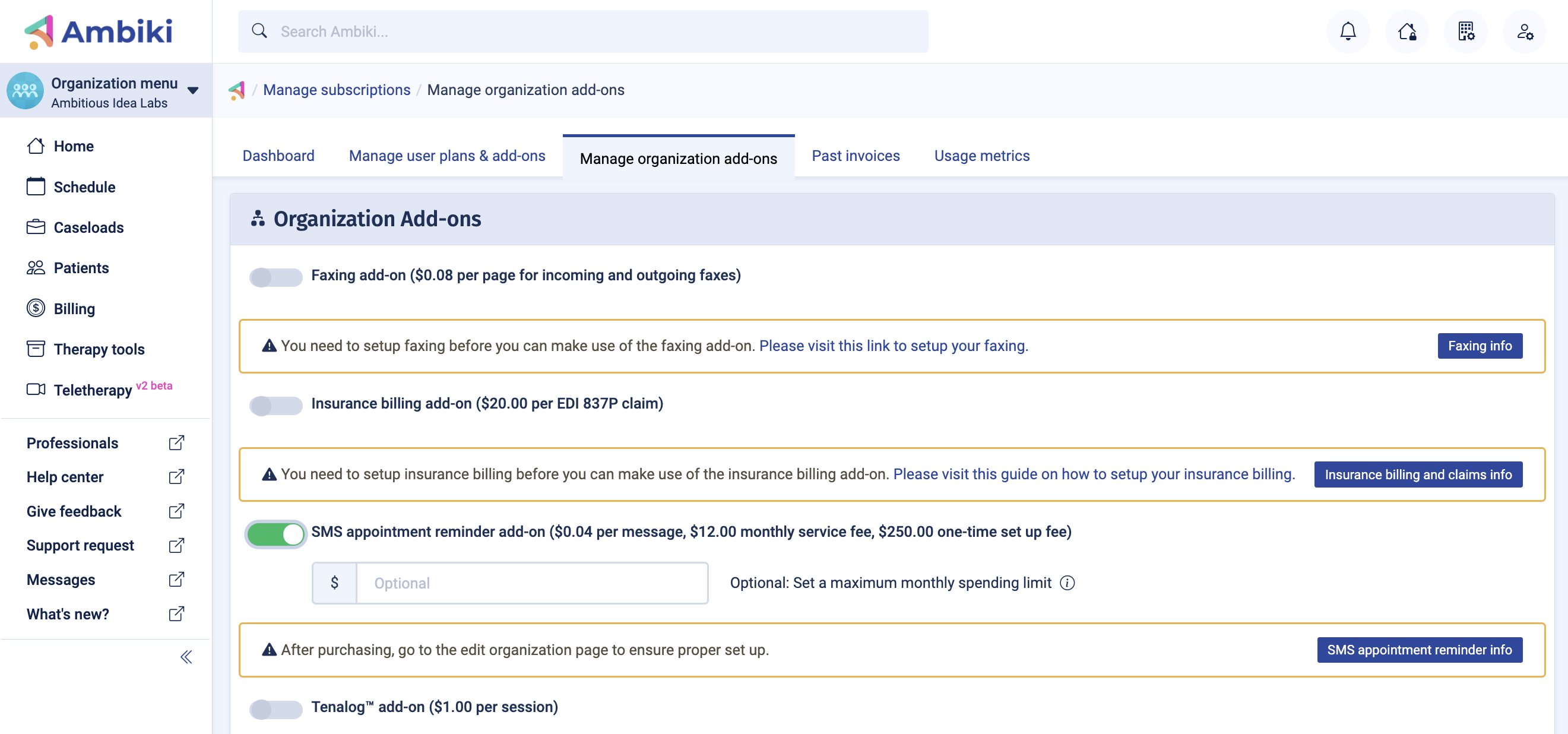
- Navigate to the Manage Organization Add-ons page: Organization Menu → Subscription → Manage Organization Add-ons
- Toggle on SMS appointment reminder
- Click Update Add-ons
Setting Up Your Organization
Step 1: Access SMS Settings
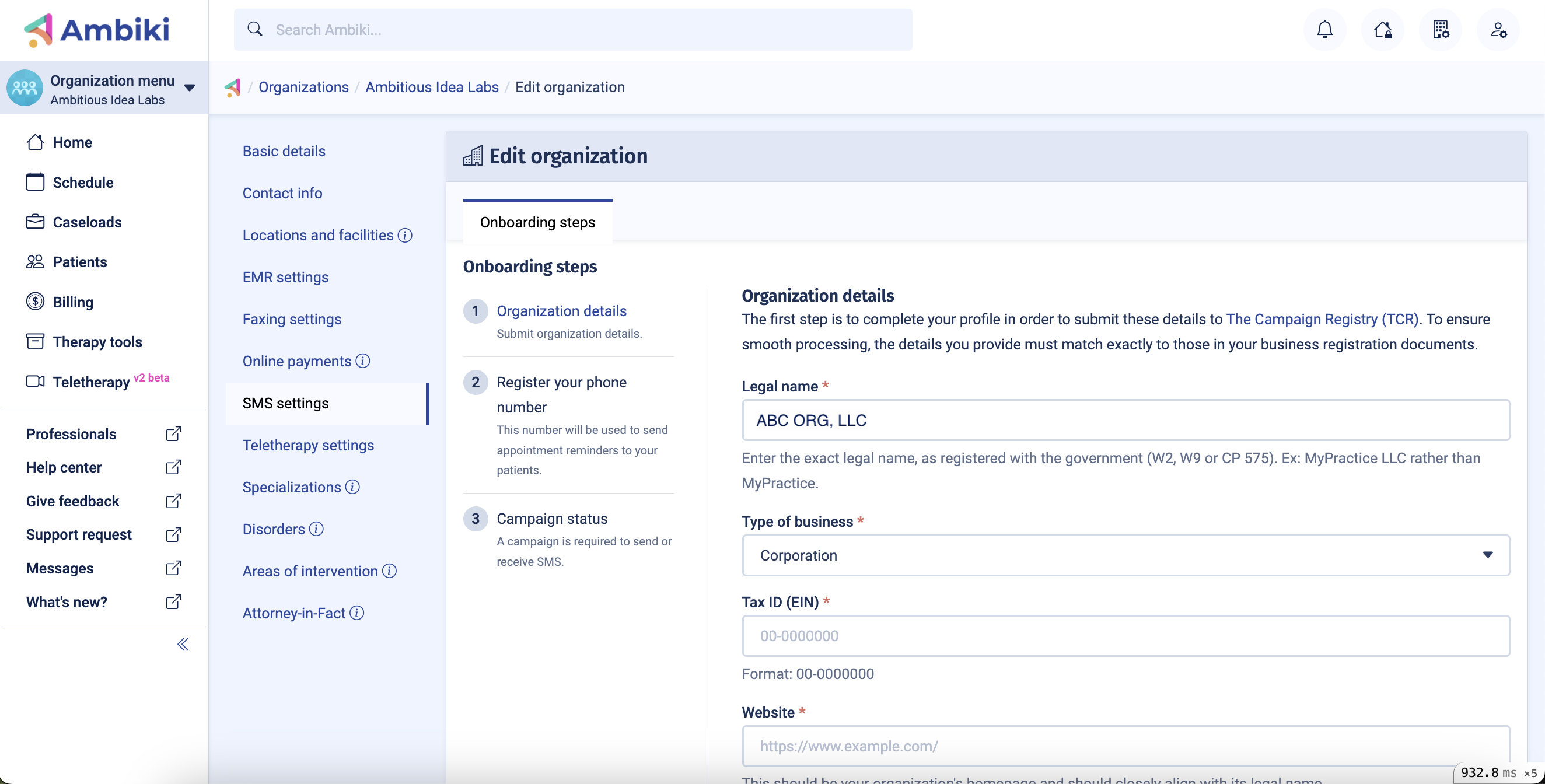
- Navigate to SMS Settings: Organization Menu → Edit Organization → SMS Settings
- Fill out the organization details
- Note: If you are not the owner of the organization, choose "Other" for Job Position and enter your title in the Job Title section
Step 2: Select Your Phone Number
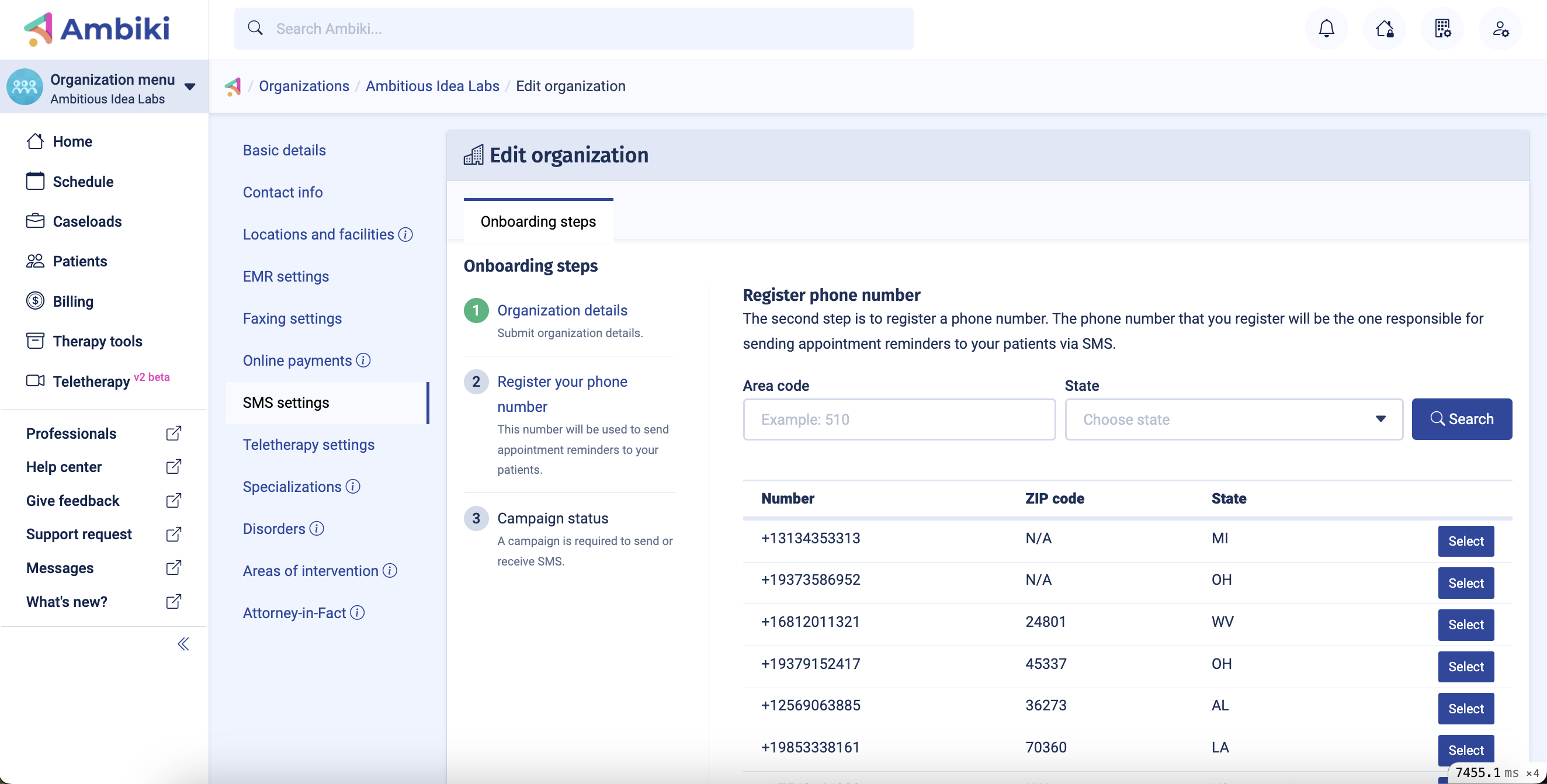
- Choose a phone number from the available list, OR
- Enter an area code and state to get a more refined list of available numbers
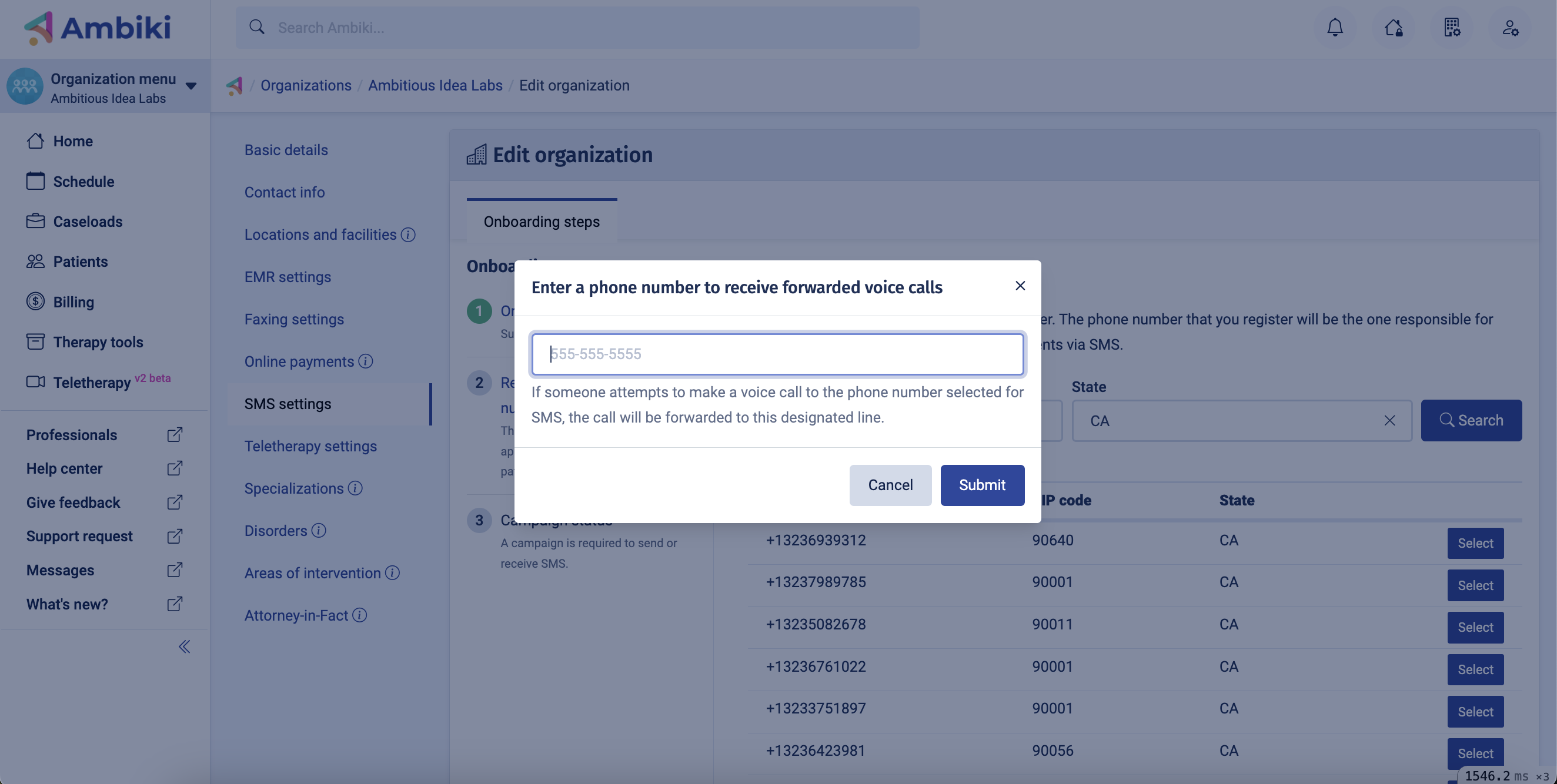
- Add a call forwarding number (optional)
Step 3: Wait for Campaign Approval
- After completing the setup, the campaign approval process begins automatically
- Approval time: 1-21 business days
- You will receive an email notification when approved
- Your campaign status will turn green once approved
- Note: You can start configuring reminder settings while waiting for approval
Reminder Settings
Enable Appointment Reminders
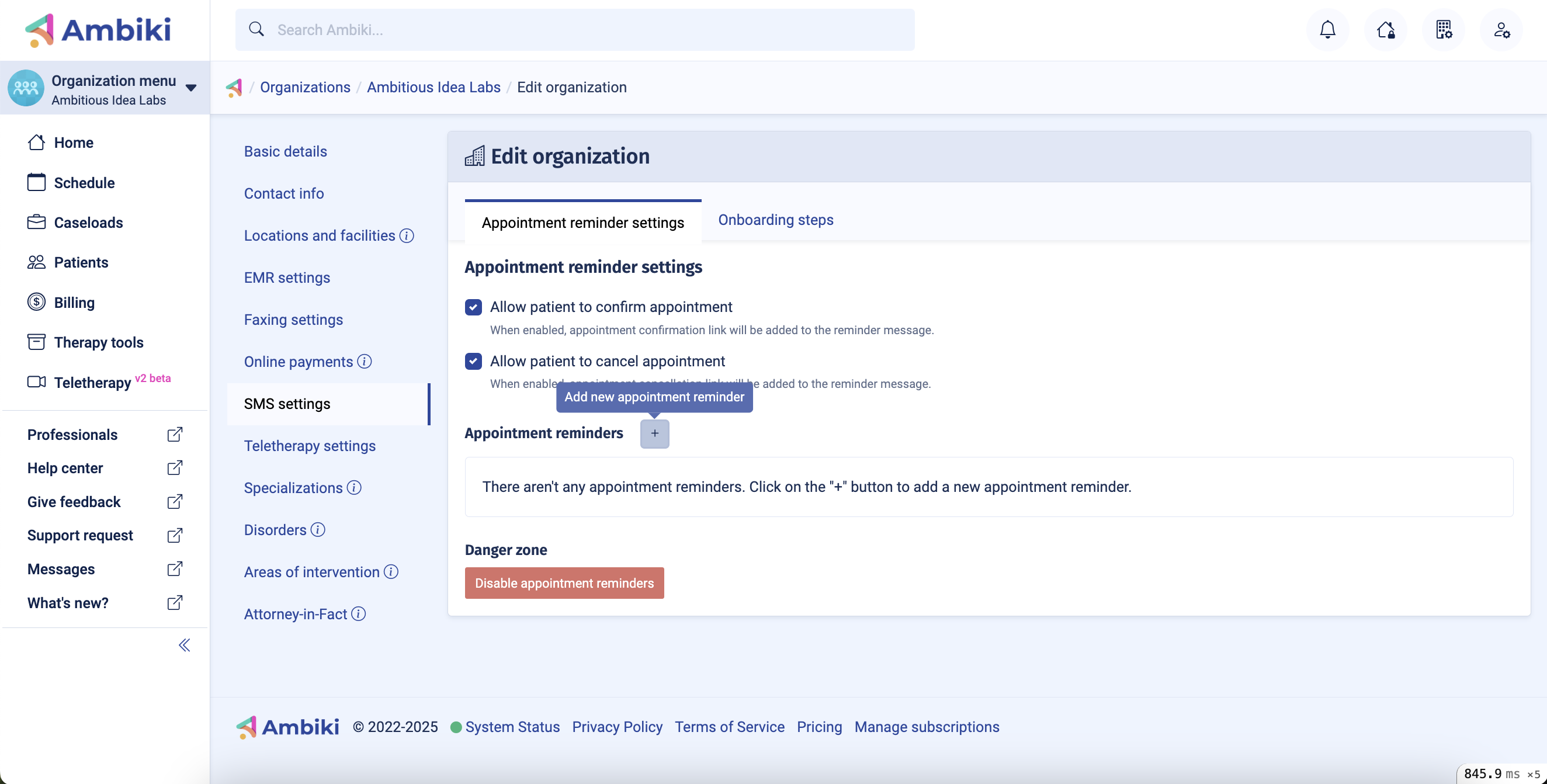
- Navigate to the Appointment Reminder Settings tab
- Click Enable Appointment Reminder Settings
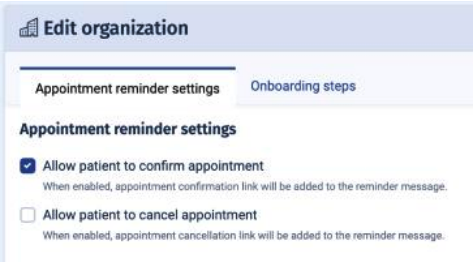
- By default, Confirm and Cancel options are enabled for recipients
Add Custom Reminders
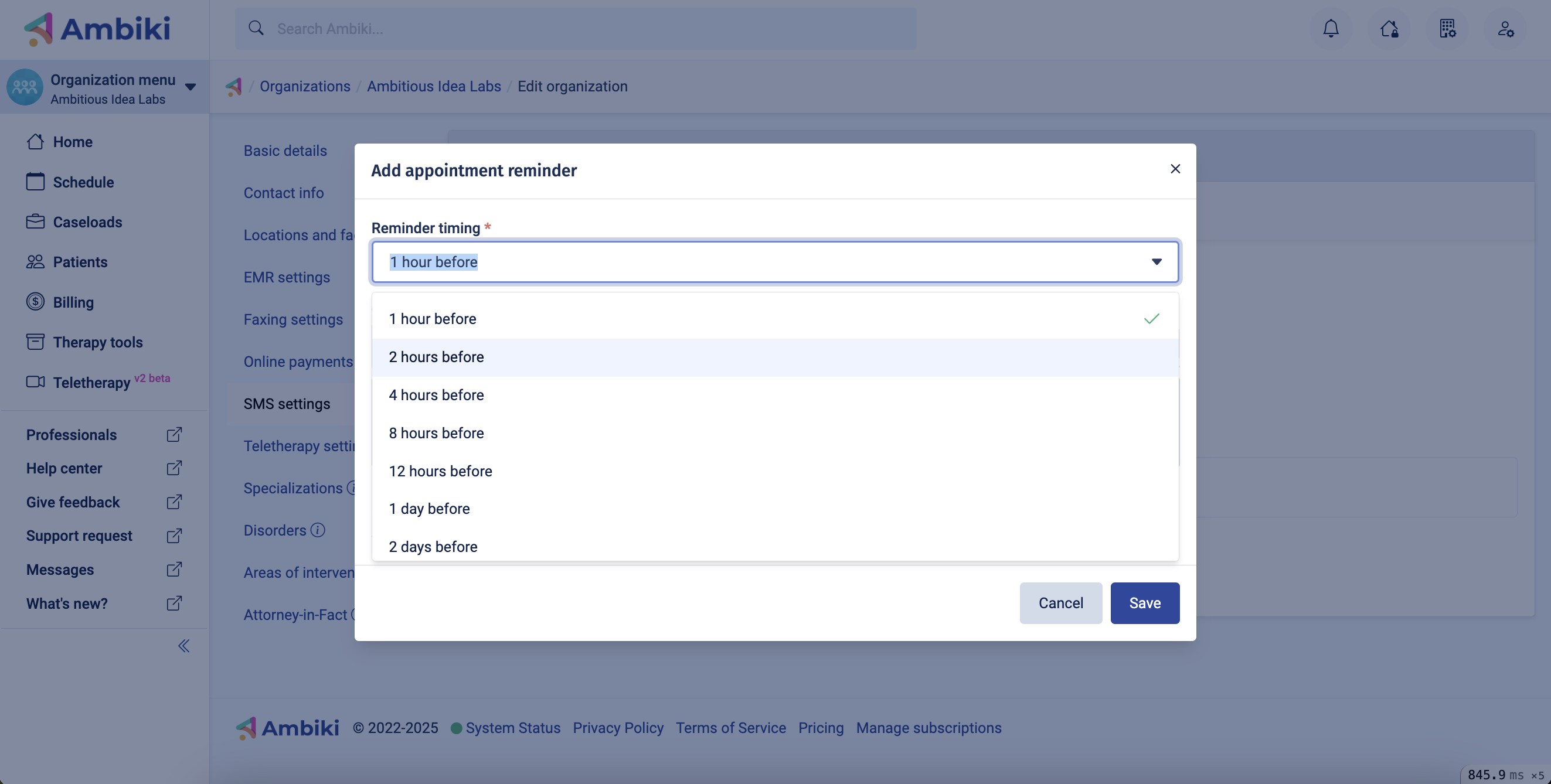
- Click the + icon to add a new reminder
- Choose a time for the reminder (e.g., 24 hours before, 1 hour before)
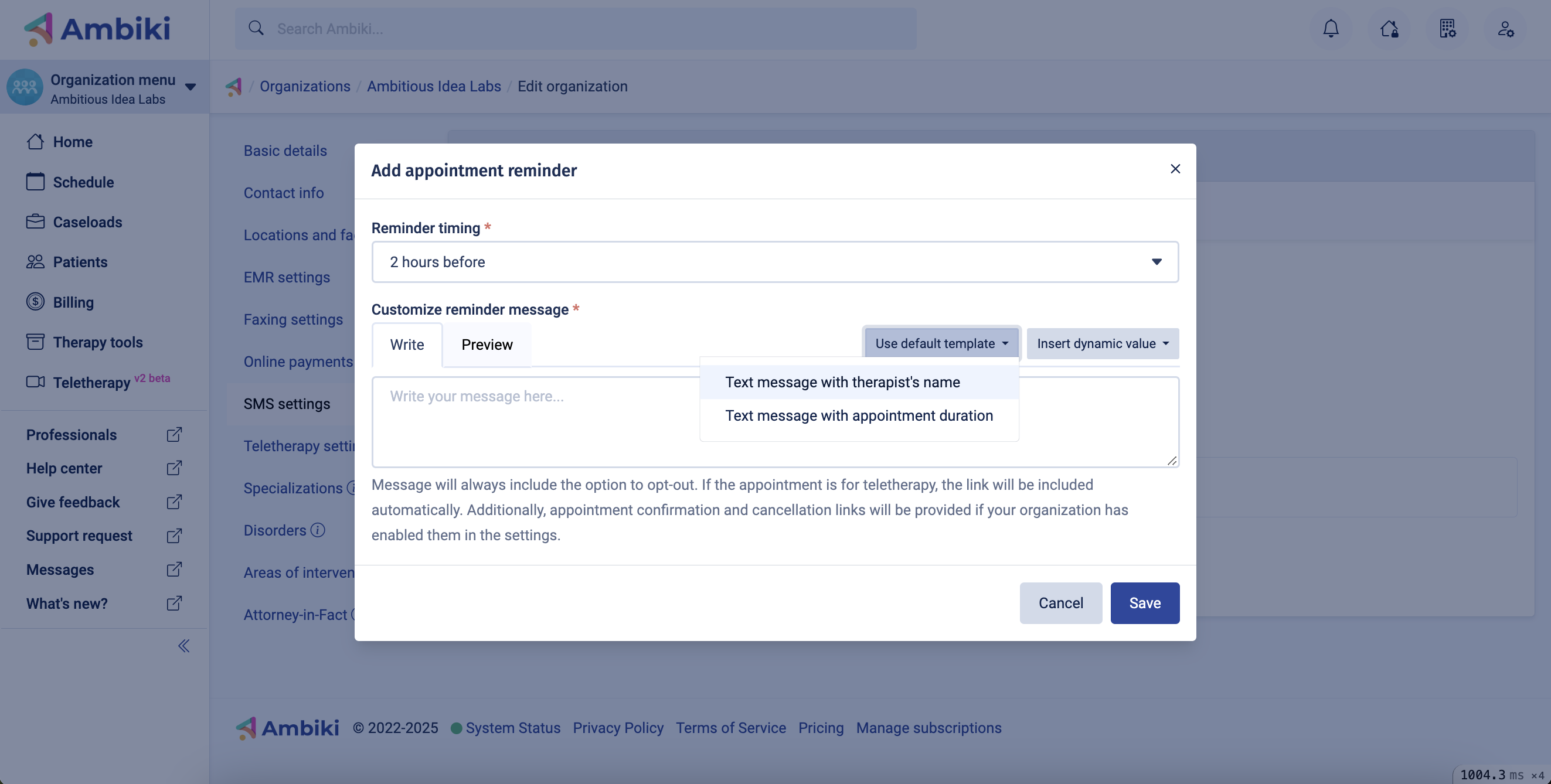
- Select a default template OR type your own custom message
- Use Dynamic Values to personalize messages:
- Dynamic values are placed in curly brackets
{like_this} - The system automatically replaces these with appropriate information:
- Patient name
- Appointment date
- Appointment time
- Duration
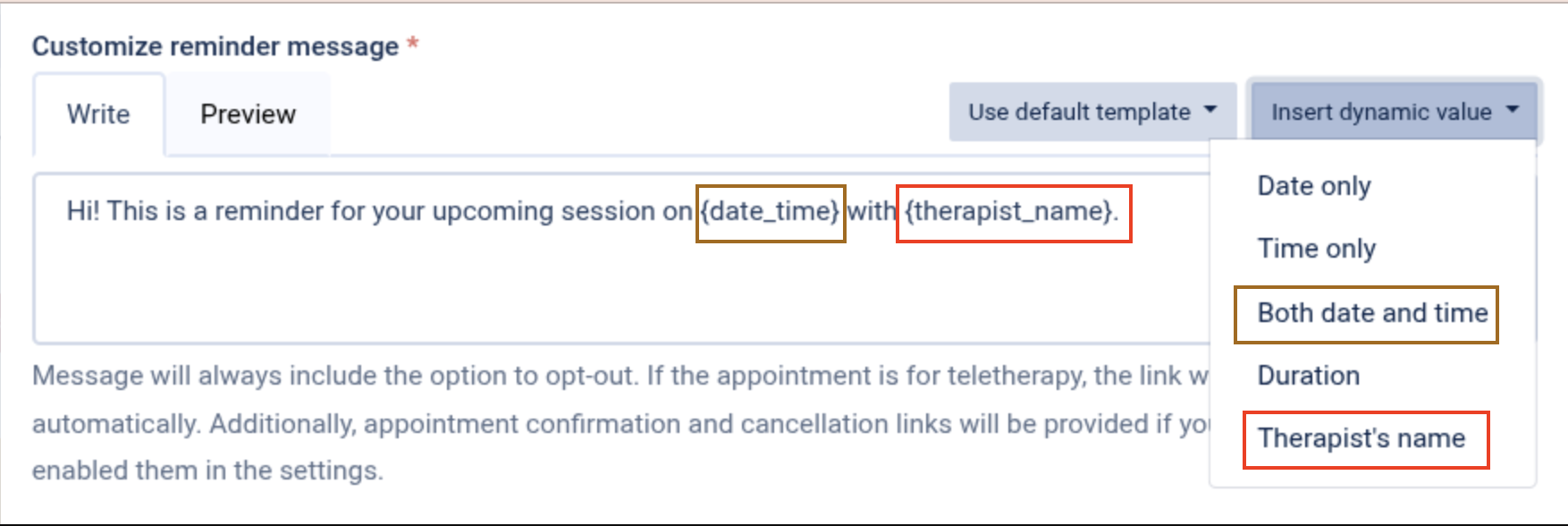
Dynamic value options (click to enlarge)
- Dynamic values are placed in curly brackets
- Teletherapy Integration: If you have the Teletherapy Add-On enabled, the teletherapy link will automatically be added to the text
Edit or Delete Reminders
All reminders can be edited or deleted after creation. Simply return to the Appointment Reminder Settings and make your changes.
How Reminders Are Sent
Patient Opt-In Process
Method 1: Manual Opt-In (via Patient Profile)
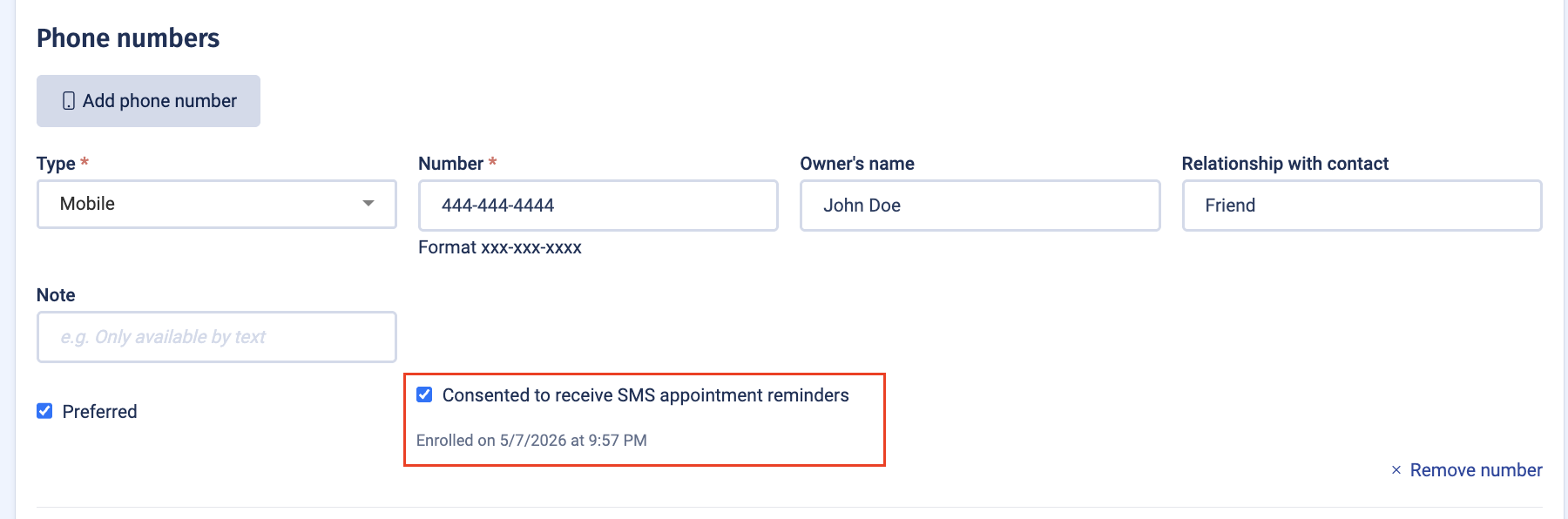
- After receiving verbal consent from the patient, open their patient profile and navigate to Contacts
- Click Edit and scroll down to the phone numbers section
- Check the opt-in checkbox under the mobile number you want to enroll
- The opt-in checkbox only appears when the phone number type is set to "Mobile"
- Once enrolled, the patient's profile will show "SMS enrolled" next to that number along with the consent date
Method 2: Self-Service Opt-In (via Text)
- You can provide your clients with your organization phone number in your intake documents and have them text "Start" to your organization's SMS number to opt in. This will automatically enable SMS reminders for their mobile number on file.
- Clients can text "Stop" to opt out at any time. This will automatically disable SMS reminders for that number.
Method 3: Patient Self-Service Opt-In (via Intake Form)
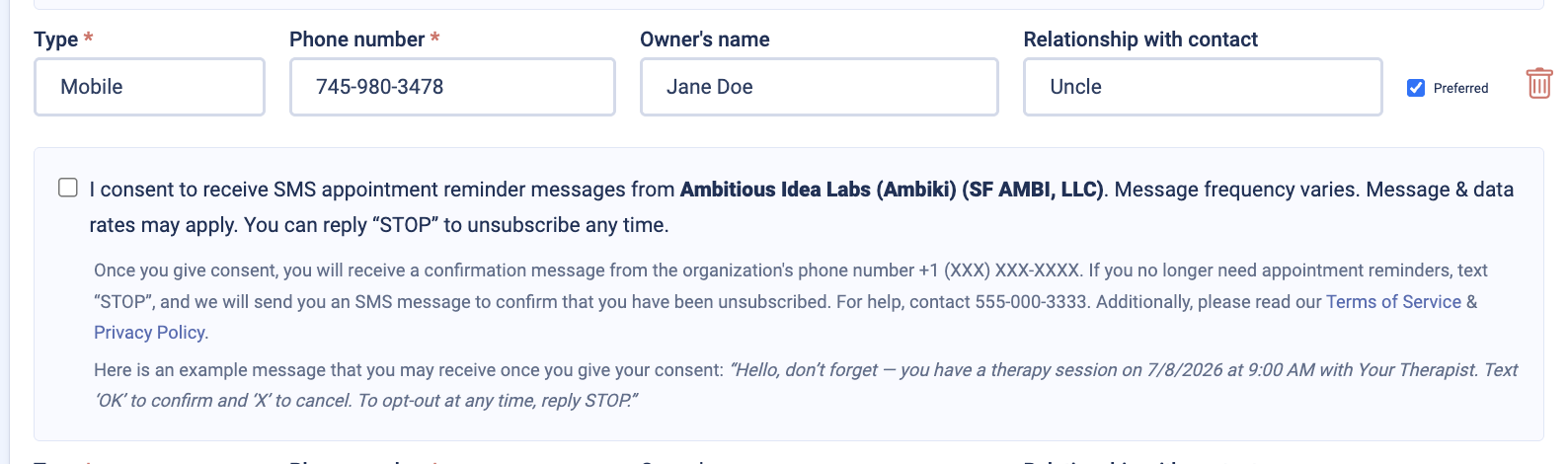
- When a patient fills out an intake form and enters a mobile phone number, a consent checkbox appears inline on the form
- If the patient checks the box, they are opted in automatically upon submission and will receive a confirmation text from your organization's SMS number
Phone Number Requirements
For a patient to receive SMS reminders:
- The organization's campaign must be approved (green status)
- The phone number must be marked as "Mobile"
- The mobile number must have "Consented to receive SMS appointment reminders" checked
- If a patient has multiple mobile numbers with consent enabled, each enrolled number receives the reminder
Patient Experience
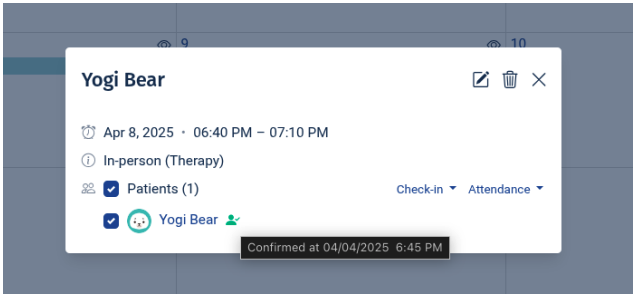
When Confirm & Cancel Are Enabled
- Patient receives the reminder message
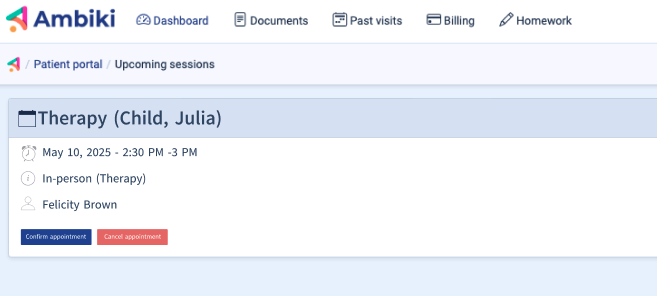
- Message includes a link to their patient portal
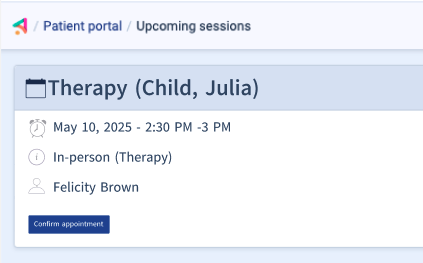
- They can click the link to confirm or cancel the appointment
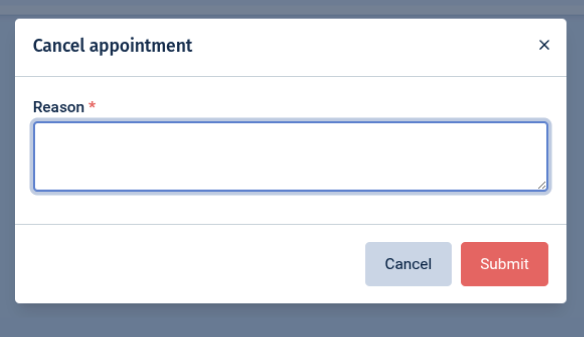
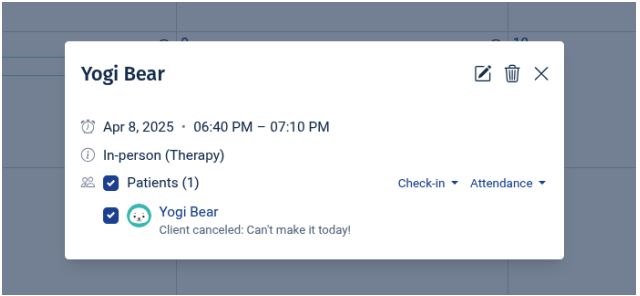
- To cancel: They must enter a reason (required field)
- Confirmation result: Green checkmark appears on the schedule next to the confirmed appointment
- Cancellation result: Event appears crossed out with cancellation details
When Confirm or Cancel Are Disabled
- If either (or both) options are disabled, the corresponding button will not appear in the patient portal
- Best practice: Adjust your message wording to provide an alternative method to confirm or cancel (e.g., "Call us at [phone number] to confirm or cancel")
Managing Responses
Viewing Communication
- Navigate to the patient's profile
- Open the Communication Log tab
- All SMS messages (sent and received) are logged here
- Click View to see details of any communication
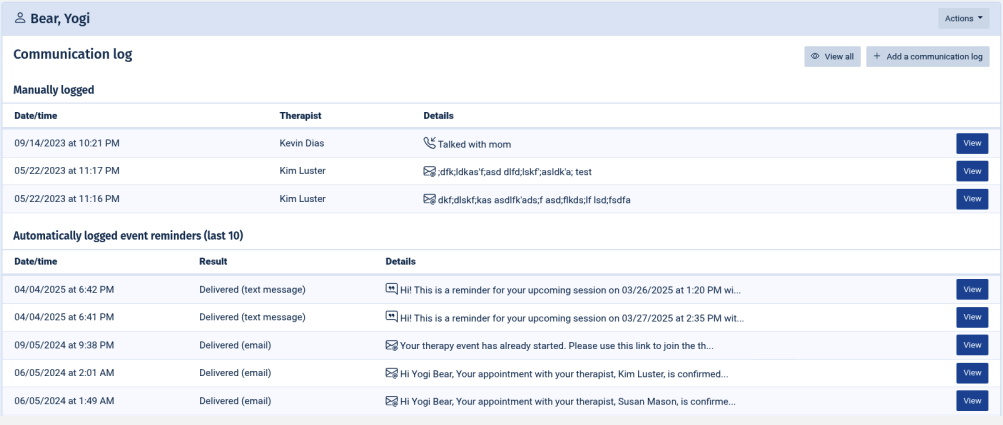
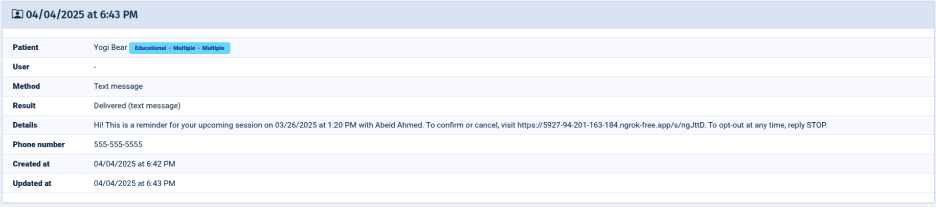
Handling Patient Replies
- Patients can reply to reminder texts
- Responses appear in the Communication Log
- Note: The system does not currently send notifications for incoming messages
- Check the Communication Log regularly to see patient responses
Frequently Asked Questions
General Questions
Q: How much does this service cost?
A: The current cost is $0.05 per text with no setup fee or monthly fee.
Q: Will I be notified via JetStream or on my home dashboard of incoming messages?
A: We currently do not have notifications for incoming messages. Check the patient's Communication Log to view responses.
Q: How long does it take to get approved?
A: Campaign approval takes 1-21 business days. You'll receive an email when approved and your campaign status will turn green.
Technical Questions
Q: Can I send an appointment reminder to two mobile numbers?
A: Yes. Reminders are sent to every mobile number that has SMS consent enabled. Simply check "Consented to receive SMS appointment reminders" on each mobile number you want to enroll.
Q: Can a parent send a response to the reminder? If so, where will I see that?
A: Yes, parents can text responses. Responses appear in the patient's Communication Log, but no notification is sent.
Q: I have a Teletherapy appointment, but I'm not signed up through Ambiki. Do I need to send the link separately?
A: Yes, teletherapy links are only automatically included if you have purchased the Teletherapy Add-on and enabled it for the user.
Q: My teletherapy link looks different in the SMS message. Can patients still use this link to log in?
A: Yes, we shorten the link for SMS messages. Both links (email and SMS) work to log into teletherapy.
Q: Can I send a reminder to a parent who is not set up in the parent portal?
A: Yes, you can send reminders. However, the recipient won't be able to confirm or cancel via the link since they don't have portal access.
Customization Questions
Q: We charge cancellation fees. How do I notify parents to call to cancel?
A: Customize your message wording to include a phone number to call for cancellations. You can also disable the "Cancel" button if you want all cancellations to go through your office.
Q: Can I send just one text reminder to a patient?
A: SMS reminders are scheduled messages that automatically send based on events on the schedule. You cannot send ad-hoc individual texts through this system.
Q: Can I change the reminder timing after I set it up?
A: Yes, all reminders can be edited or deleted at any time through the Appointment Reminder Settings.
Q: What happens if I want to temporarily stop reminders for a specific patient?
A: Edit the patient's Contact Info and uncheck "Consented to receive SMS appointment reminders" on their mobile number. You can re-enable it at any time.
Troubleshooting
Reminders Not Sending
If reminders aren't being sent, check:
- Campaign status - Is your campaign approved (green status)?
- Phone number type - Is it marked as "Mobile"?
- SMS consent - Is "Consented to receive SMS appointment reminders" checked on that number?
- Subscription status - Is the SMS Add-on active in your subscription?
- Appointment timing - Has the reminder time window already passed?
Patient Didn't Receive Reminder
- Verify the phone number is correct and marked as mobile
- Check if the patient has opted out (either via profile or by texting "Stop")
- Review the Communication Log to confirm the message was sent
- Ask the patient to check their spam/blocked messages
Campaign Not Approved
- Approval can take up to 21 business days
- Ensure all organization information is complete and accurate
- Contact Ambiki support if approval takes longer than 21 days
Best Practices
- Communicate with patients: Let patients know about SMS reminders via your intake documents and provide an option for them to opt in/out on the form.
- Set multiple reminders: Consider a 24-hour and a 2-hour reminder for best results
- Customize messages: Use your organization's messaging style and include relevant details
- Monitor responses: Check Communication Logs regularly for patient replies
- Keep phone numbers updated: Confirm preferred phone number regularly.
- Test first: Send a test reminder to yourself to see the patient experience
- Provide alternatives: Include a phone number in messages in case patients need to speak with someone
Support
If you need assistance with SMS reminders:
- Contact Ambiki support through your organization menu
- Check the Communication Log for detailed message history
- Review campaign status in SMS Settings
- Ensure your subscription is active and up to date